
When you encounter a crash with COBBLEVERSE, first make sure you are using the modpack without any modifications. This means no extra mods, datapacks, or resource packs.
Often, the most common crashes are caused by adding mods that are incompatible with the pack; therefore, remove them before worrying too much and always make a backup of your world first.
If you are using the modpack without any modifications, we need your log and the name of the launcher you are using to understand what went wrong. Here is how to upload them correctly depending on your platform.
1. Modrinth
The Modrinth app makes this process extremely simple thanks to a built-in feature.
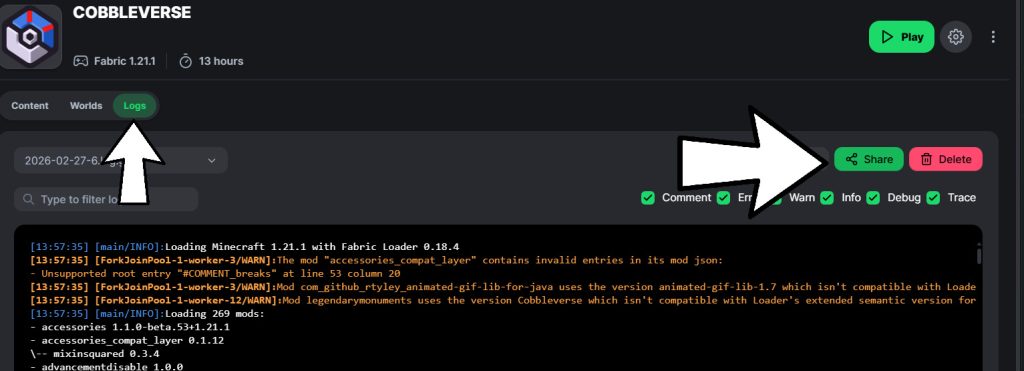
- In the launcher’s side menu, under the “Logs” section, click on the “Share” button.
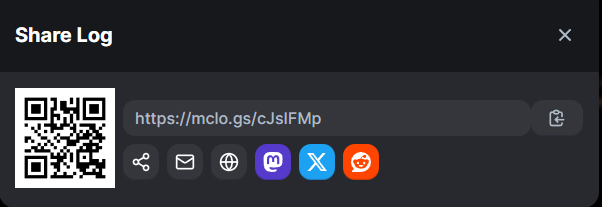
- The launcher will automatically upload the log and generate a unique link.
- Copy the link and send it the right channel on our dedicated Discord server.
2. CurseForge
CurseForge does not have a direct sharing button yet, so you will need to find the file manually and use an external service like mclogs.
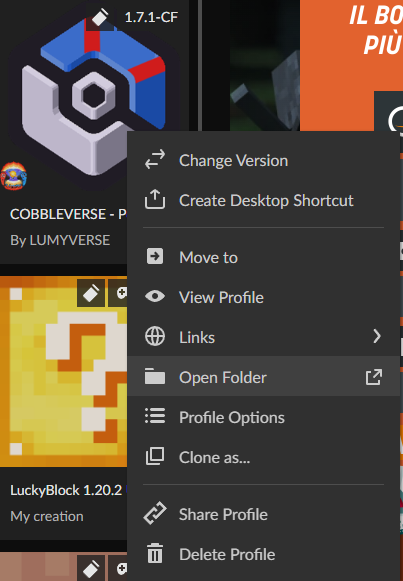
- Open the CurseForge app and right-click on the Modpack logo.
- Select “Open Folder”.
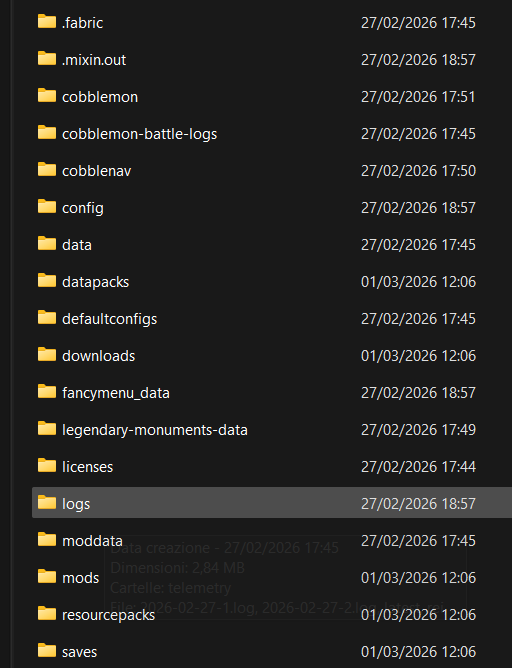
- In the folder that opens, enter the subfolder named
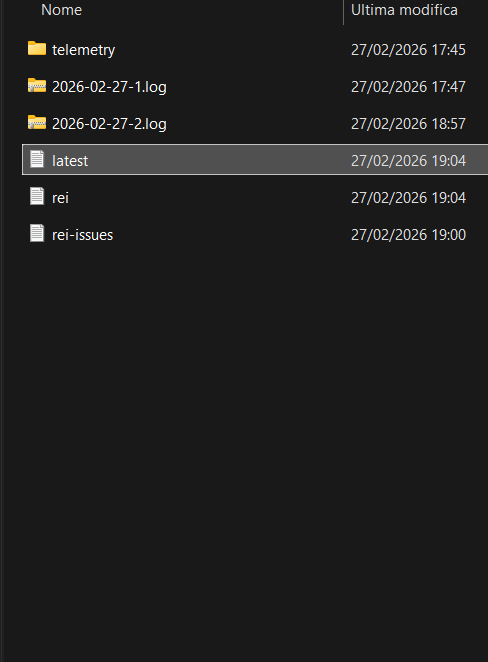
logs. - Locate the file named
latest. - Open the
latestfile with a text editor (like Notepad), copy all the content, and paste it onto mclo.gs. - Alternatively, you can directly drag and drop the
latestfile from your computer onto the mclogs webpage. - Click “Save” and copy the generated URL to share it, forwarding it to the appropriate support section on our Discord.
3. Server Logs
If you are running the modpack on a server, we may also need your server log. You can access it through your server’s control panel or FTP.
- Open your server’s console or file manager.
- Look for the folder named
logs. - Inside, locate the file named
latest. - Follow the exact same steps as for CurseForge: open the file, copy all the content, and paste it onto mclo.gs.


